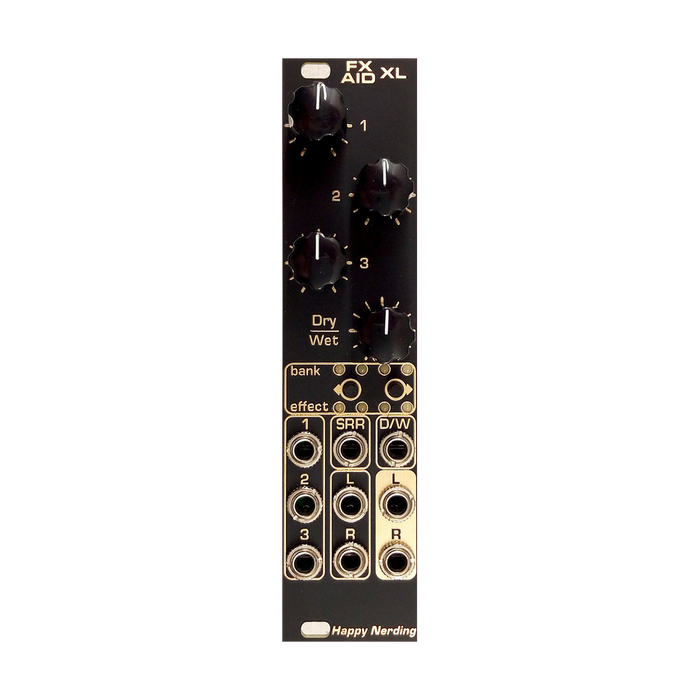
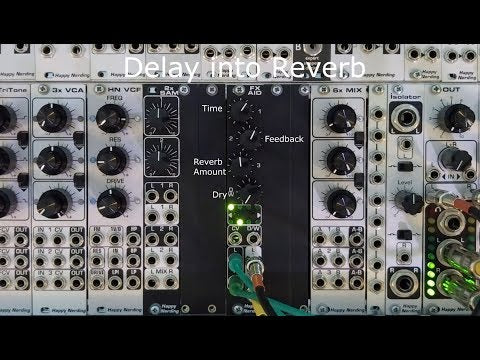
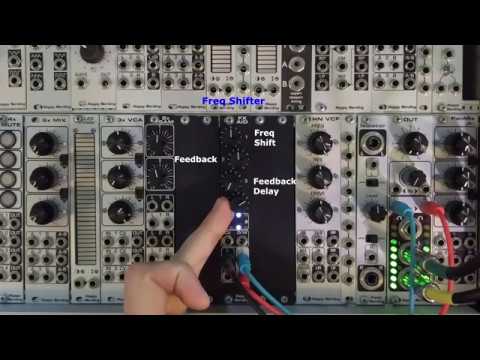
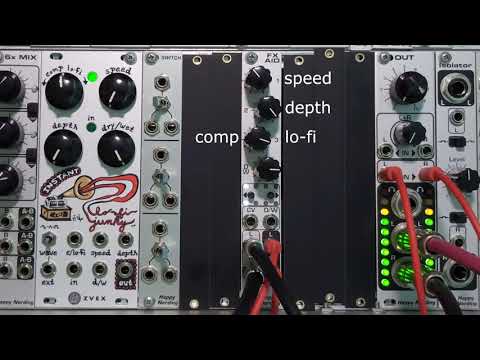
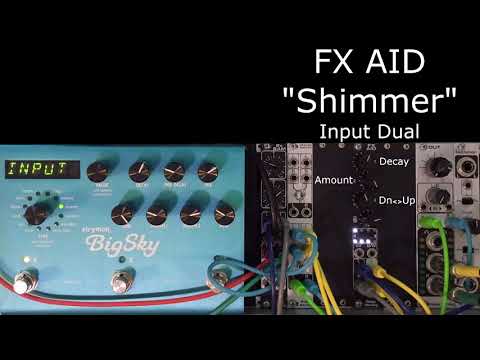
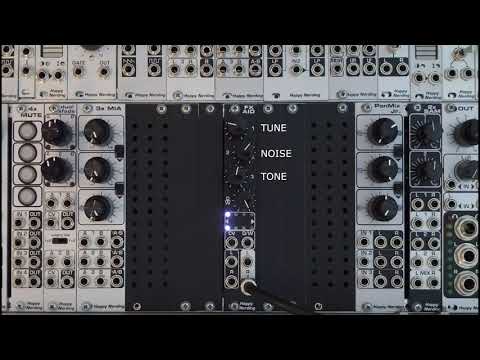
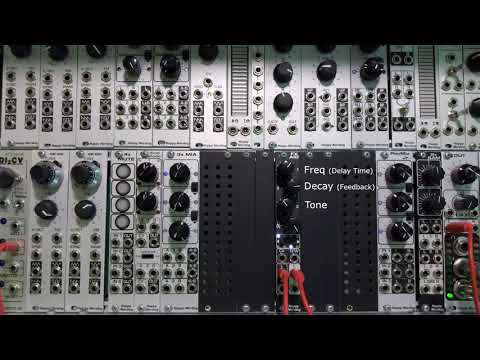
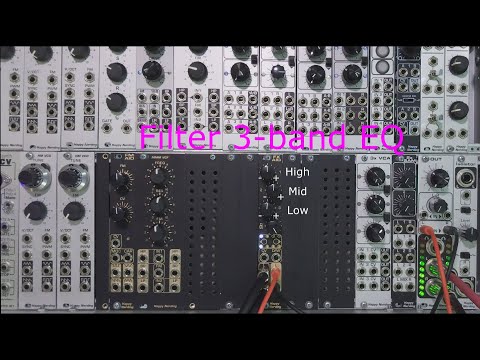
Happy Nerding FX AID XL is a compact stereo multi-effects unit based on Spin FV-1 that allows you to load many original programmed effects. It has 8 banks that store 4 effects, and 32 effects are installed in it by default, but other than thatFX AID Editor AppWell over 100Original effect libraryYou can choose from and install.You can save up to four favorite programs and control settings as presets.
The XL version of 6HP has a dedicated CV input for all three controls and a sample rate CV input that can be assigned to other controls. There is no difference in the effects and sound quality that can be used between the XL version and the normal version.
HOW TO USE
6HP's compact interface has 3 effect parameter controls and Dry / Wet balance control with dedicated CV input, buttons and LEDs used for effect selection and mode switching, CV input and sample rate corresponding to each effect parameter. Equipped with CV input and stereo input / output.The content of the effect parameters will vary depending on the selected effect.
In FX AID XL, the sample rate CV (SRR CV) can be assigned not only to the sample rate but also to the control of effect parameters. CV assignments, presets, and last used effects are remembered and retained after a power cycle.
During normal operation, the upper LED indicates the selected bank, and the lower LED indicates the position in the bank.Use the two buttons to select an effect.Use the right button to select the next effect and the left button to select the previous effect (Method 2).There is also another selection method to select the bank with the left button and the effect in the bank with the right button (Method 1).To move to this selection method, press the left button for 2 seconds. Method 10 is when all the upper tiers of the LED are lit, and method 2 is when all the lower tiers are lit.Press the left button to switch, then press and hold the left button for 1 seconds to return to normal operation mode.
To save a set of your favorite effects and CV assignments as a preset, press and hold the right button and hold it down when the LED goes out.In the meantime, hold down the left button to switch the save destination, and release the right button to save the preset.To recall a preset, press and release the right button for 2 seconds, then hold down the right button to switch presets.Press the left button to return.
To set the control destination for the SRR input, press and hold the left button for 2 seconds, then press the right button and select the control destination from the four LEDs. The four LEDs correspond to controls 4, 4, 1,2,3 and sample rates from the left, respectively.By default, it is assigned to the sample rate.
FX AID XL can reflash user-selected Happy Nerding effects in any order.FX AID Editor AppGo to to build a list of the effects you want to use and download the firmware in the form of a wav file by pressing the "Get Firmware" button in the app. In the appOver 130 effectsIt is possible to select. In addition to creating firmware, the App allows you to output a simple manual of the effect selected from "Get Memo" as a PDF, and save / recall the selected effect list as a bank.The standalone version, which can be downloaded from "Download", also allows you to load custom / free Spin programs into the module (not supported).
The procedure for reflashing the downloaded wav file is as follows.
-Press and hold both buttons on the module for 10 seconds to enter Reflashing Mode.The two LEDs on the inside of the upper row blink.
Patch the firmware WAV file playback device to the FX AID XL SRR input.
Play Wav files at line level.The update is complete when playback is complete and you reboot.
If the two LEDs on the outside of the upper row flash during the update, the update has failed.Press the left button to reset, check the volume of the file, etc., and then try again.